

Sitemap
Sitemap displays all hosts and paths discovered through captured traffic as an interactive node graph, giving you a structural view of the application under test.
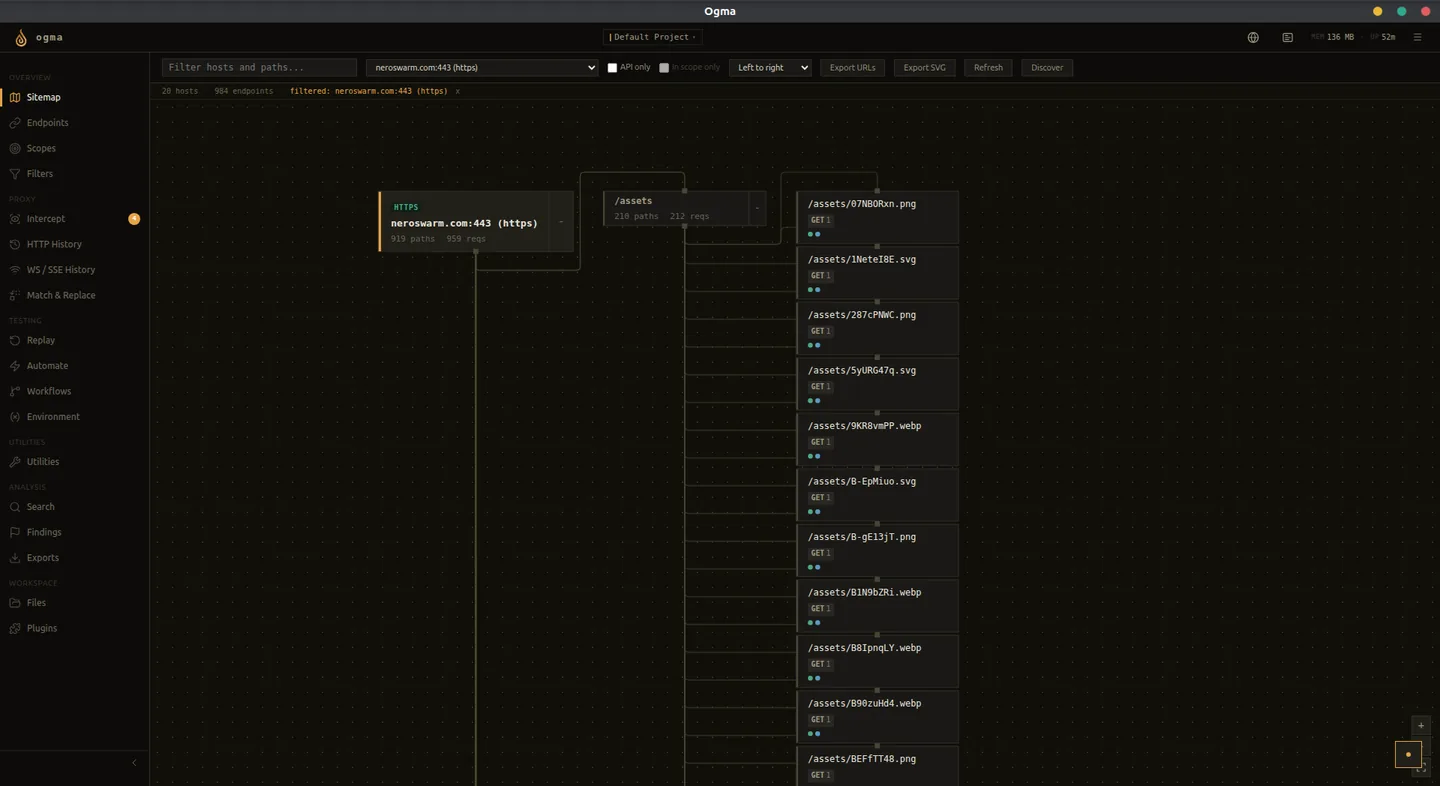
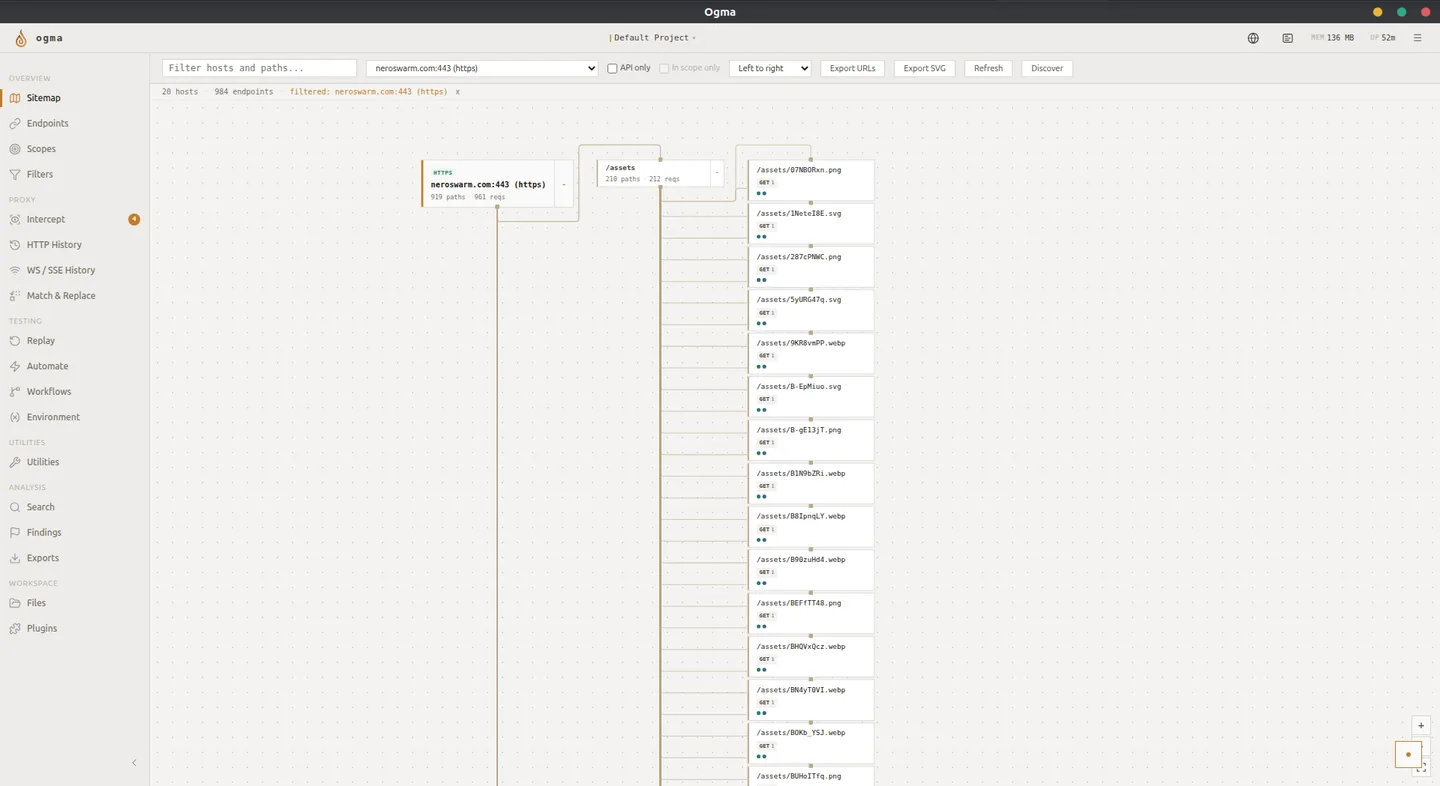
The Node Graph
The default view renders hosts as top-level domain nodes with path segments as child nodes. The graph updates as new traffic is captured.
- Each host node shows the domain or IP, total request count, and the set of HTTP methods observed.
- Each path node shows the path segment, status codes returned, and the request count for that path.
- Nodes with child paths expand on click. Leaf nodes represent the deepest captured path segments.
Pan and zoom with mouse or trackpad. Use the Reset view button to return to the default layout.
Selecting a Node
Click any host or path node to open its detail panel on the right.
The detail panel shows:
- Full URL for the selected path.
- HTTP methods seen at this path.
- Status code distribution (counts per code).
- Timestamps of first and last captured request.
- A list of captured requests for this path, sorted by time.
Click any request in the list to open it in the HTTP History inspector.
Context Menu Actions
Right-click any path node to open its context menu.
| Action | Description |
|---|---|
| View in History | Opens HTTP History filtered to requests matching this host and path. |
| Send to Fuzzer | Sends the most recent request for this path to Automate as the session template. |
| Discover from here | Opens the Content Discovery panel pre-filled with this path's host and base path. |
Filtering the Sitemap
Use the Filter hosts input to show only nodes matching a hostname substring. The graph redraws to include only matching host nodes and their children.
Examples:
api.- shows only hosts whose name starts withapi.staging- shows only hosts containingstaging- Leave the field empty to show all hosts.
Content Discovery
The Discover button at the top of the Sitemap panel opens the Content Discovery panel. This panel sends probing requests to find paths not captured through passive traffic.
When you use Discover from here from a path node's context menu, the discovery panel opens with the host and base path pre-filled. You can then choose a wordlist and start discovery without retyping the target.
See Content Discovery for configuration details.