

Plugins
Plugins extend Ogma with custom UI pages, backend processing, event hooks, and settings panels - all scoped to the plugin's declared permissions.
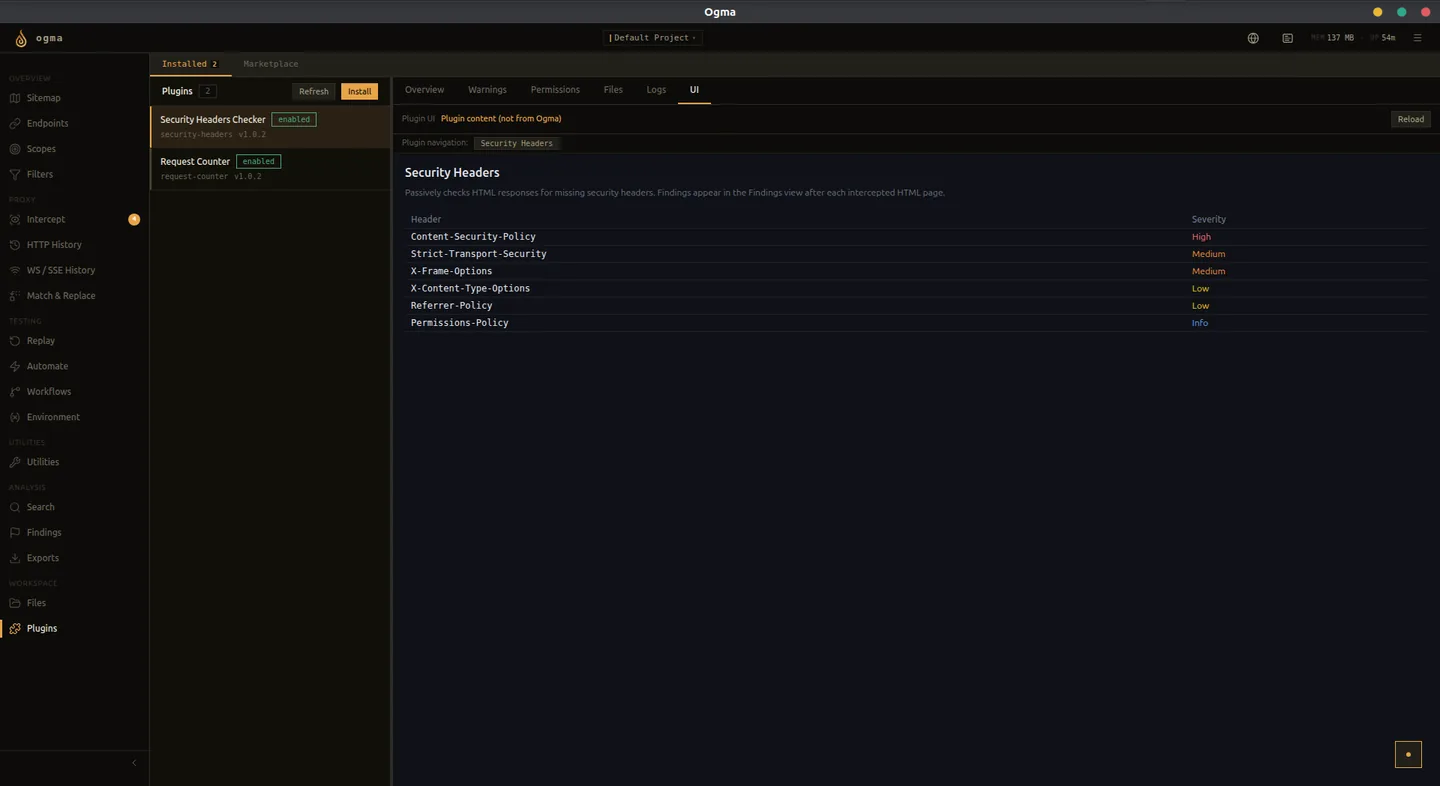
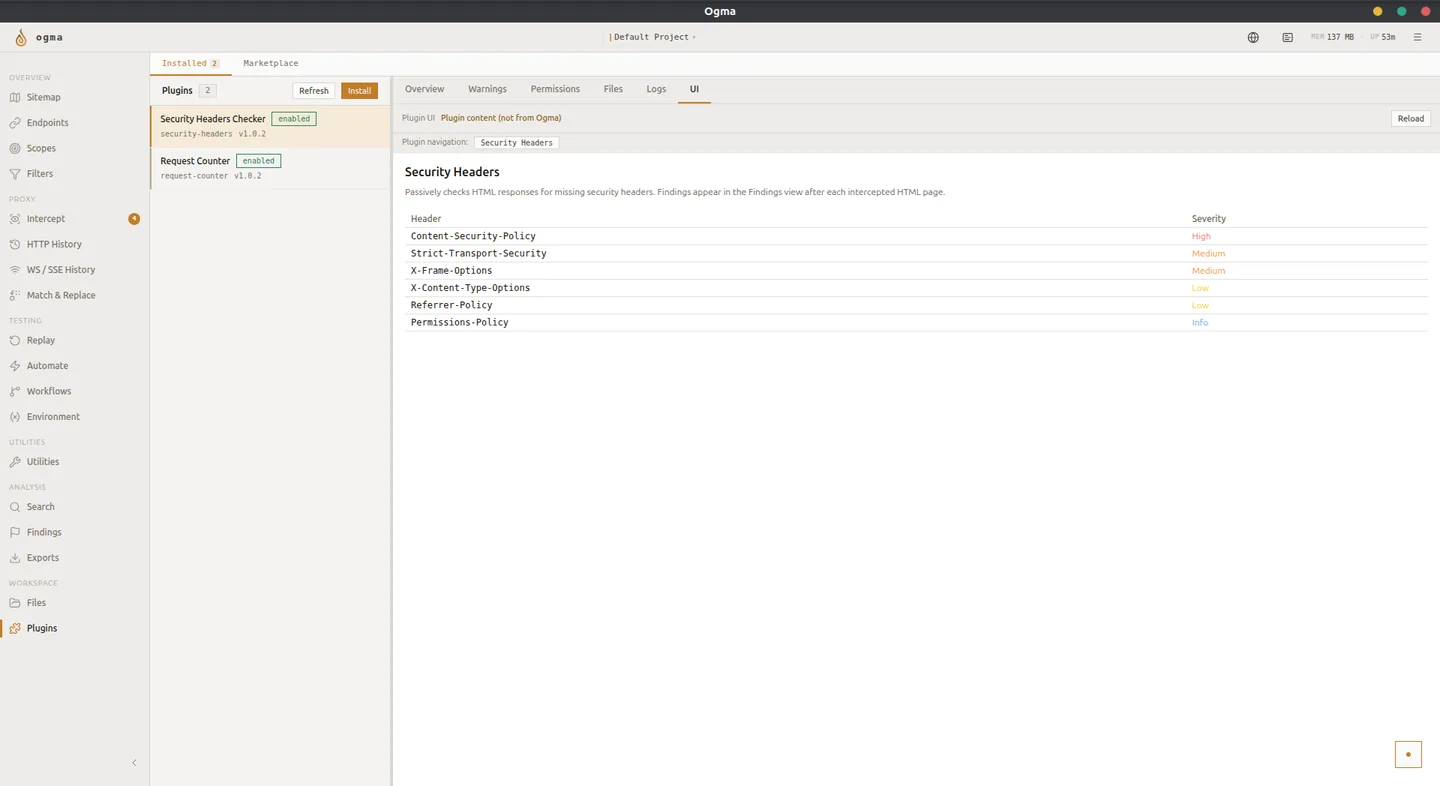
What Plugins Can Add
- Custom UI pages accessible from the left navigation.
- Backend routes that process requests or responses.
- Event hooks triggered by captured traffic.
- Settings pages for plugin-specific configuration.
- Commands registerable in the command palette.
Install From Folder
- Click Install in the Plugins view.
- Choose Folder.
- Select the plugin root directory. The directory must contain a valid plugin manifest and the files the manifest declares.
- Ogma validates the package and registers it.
- Enable the plugin to activate it.
Install From Zip Archive
- Click Install in the Plugins view.
- Choose Zip.
- Select the plugin
.zipfile. - Review the detected plugin name and version.
- Click Install, then enable the plugin.
Zip installs are copied into Ogma's managed plugin directory. The original archive can be deleted after installation.
Compatibility Warnings
After installing, Ogma may display warnings on the plugin detail page. These are informational - they do not prevent the plugin from running.
Common warnings:
- Unreferenced files - files present in the package that the manifest does not declare.
- Missing runtime shim - the plugin uses an API that requires a compatibility shim not present in this Ogma version.
Review warnings before enabling an unfamiliar plugin.
Enable and Disable
Toggle the Enabled switch on the plugin row to activate or deactivate the plugin. Disabled plugins remain installed but do not run. Re-enabling restores the plugin without reinstalling it.
Plugin Detail Tabs
Select a plugin to open its detail panel. The panel has the following tabs.
| Tab | Contents |
|---|---|
| Overview | Plugin name, version, author, description, and source. |
| Warnings | Compatibility issues detected at install or enable time. |
| Permissions | What the plugin requested and what Ogma granted at runtime. |
| Files | The list of files in the plugin package. |
| Logs | Runtime output from the plugin, with syntax highlighting for structured log lines. |
| UI | The plugin's custom page, rendered inline. |
Permissions
The Permissions tab lists each permission the plugin declared in its manifest and the current grant status. Backend calls are enforced server-side. The UI reflects the live state for each permission.
If a plugin is not behaving as expected, check the Permissions tab to confirm the required permissions are granted.
Dev Mode
Plugins installed from a folder show a Dev badge and a Reload button.
Click Reload to apply code changes without reinstalling. The plugin restarts and re-registers all hooks and routes. This is the standard iteration loop for plugin authors.
Dev mode plugins stay linked to the source folder. Changes to files in that folder take effect on the next reload.
Marketplace
The Marketplace tab lists community plugins from the Awesome Ogma Plugins registry.
- Browse or search the plugin list.
- Click a plugin to see its description, version, and compatibility metadata.
- Click Install to install it directly.
- If a newer compatible version is available for an installed marketplace plugin, the action changes to Update.
Marketplace installs require a network connection to fetch the package.