

Replay
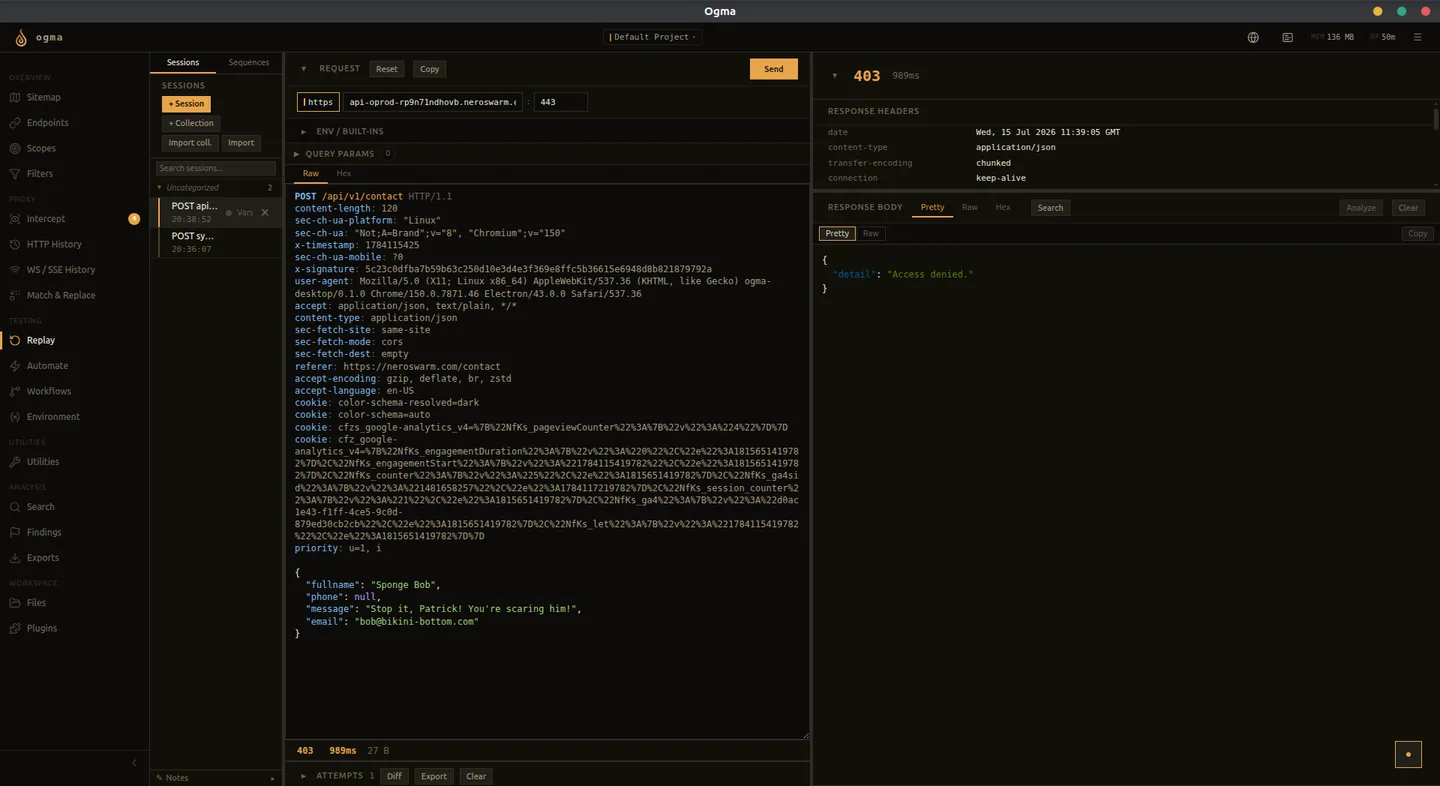
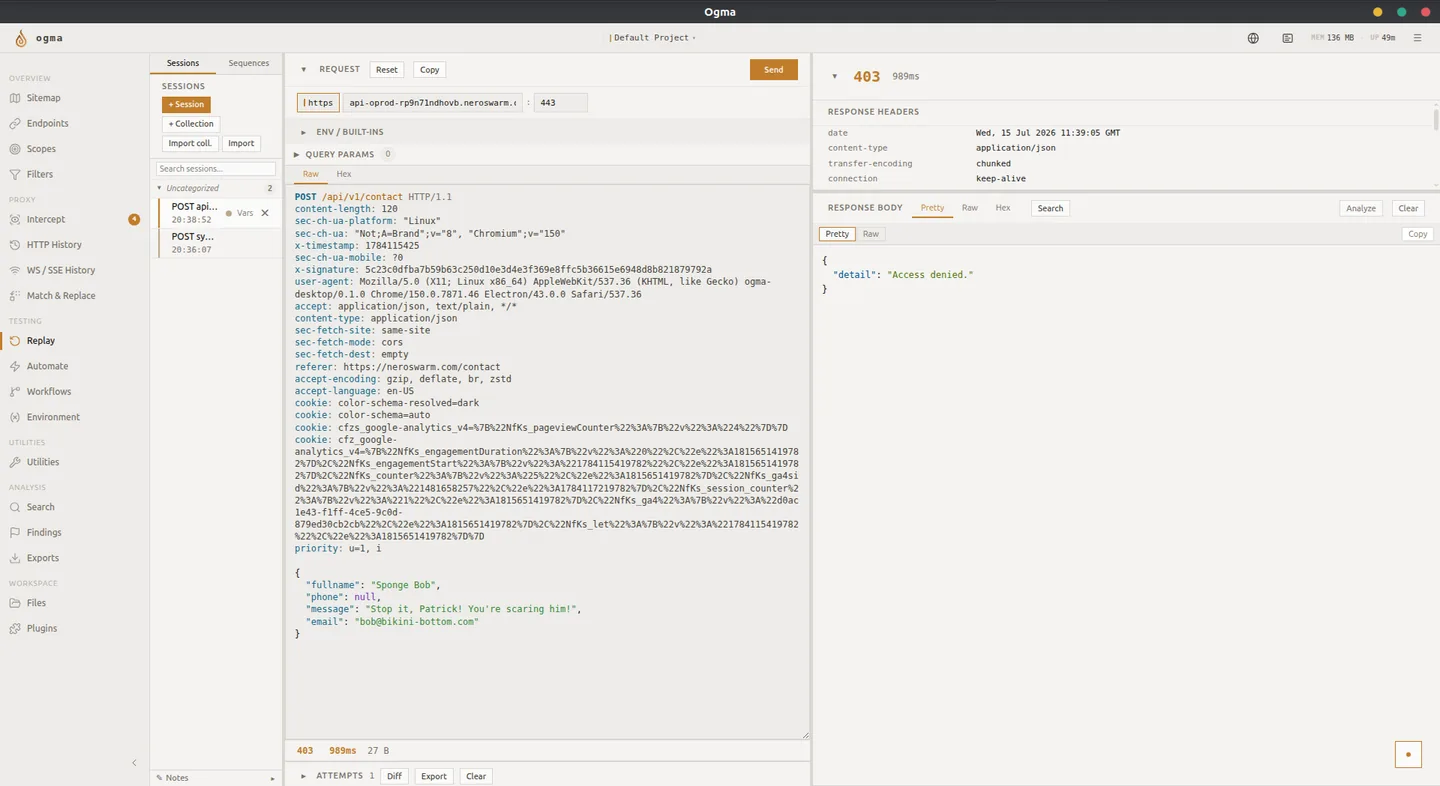
Replay lets you modify and resend any HTTP request, and tracks every attempt so you can compare how changes affect the response.
Creating a Session
A Replay session holds one request and all its attempts. Create a session in three ways:
- Select a request in HTTP History and choose Send to Replay.
- Select a result row in Automate and choose Send to Replay.
- Open Replay and create a blank session to paste or type a raw request.
Each session is independent. Open multiple sessions to work on different requests at the same time.
The Request Editor
The editor shows the full HTTP request: method, URL, headers, and body. Edit any field directly.
The editor has three tabs for editing different parts of the request:
| Tab | What you can edit |
|---|---|
| Headers | All request headers, including cookies and authorization |
| Body | Raw body content, with optional formatting for JSON or XML |
| Path | URL path, query string, and host |
Change the method using the dropdown next to the URL field.
Sending and Comparing Attempts
Click Send to dispatch the request. The response appears in the panel on the right. Each send is stored as an attempt in the Attempts list below the editor.
Select any two attempts and open the Compare tab to view a side-by-side diff of their responses. The diff highlights changes in status, headers, and body. Use this to identify behavior differences when you change a single parameter.
Environment Variables
Use syntax in any part of the request to reference a variable. Define variables in the Environment panel on the session or at the collection level.
Variables are useful for:
- Tokens that change between test sessions
- Account IDs you swap to test access control
- Hosts you switch between staging and production
When you send the request, Ogma substitutes each with its current value.
Collections
Collections group related sessions. Create a collection to organize all requests for a specific feature or test scenario.
Collection-level variables apply to all sessions in that collection, so you define a token once rather than per session.
Sending to Automate
When you want to run variations of a request at scale, select Send to Automate from the session. Ogma opens Automate with the request pre-loaded so you can define payload lists and run the campaign.
WebSocket Replay
For WebSocket connections captured in WebSocket History, Replay lets you send custom frames to an active WS connection.
- Open a captured WS session.
- Select Send to Replay.
- Edit the frame payload.
- Click Send. The response frame appears in the attempt list.
AI Assist
Click AI Assist in a Replay session to generate an HTTPQL filter expression based on the current request. Ogma produces a filter you can apply in HTTP History to find similar requests.